How to Assign a Course to a Profile in KMx
Assigning an individual course to a profile can be done by following a series of steps within KMx.
1. Introduction
This tutorial guides you through the process of adding a course assignment to a profile.
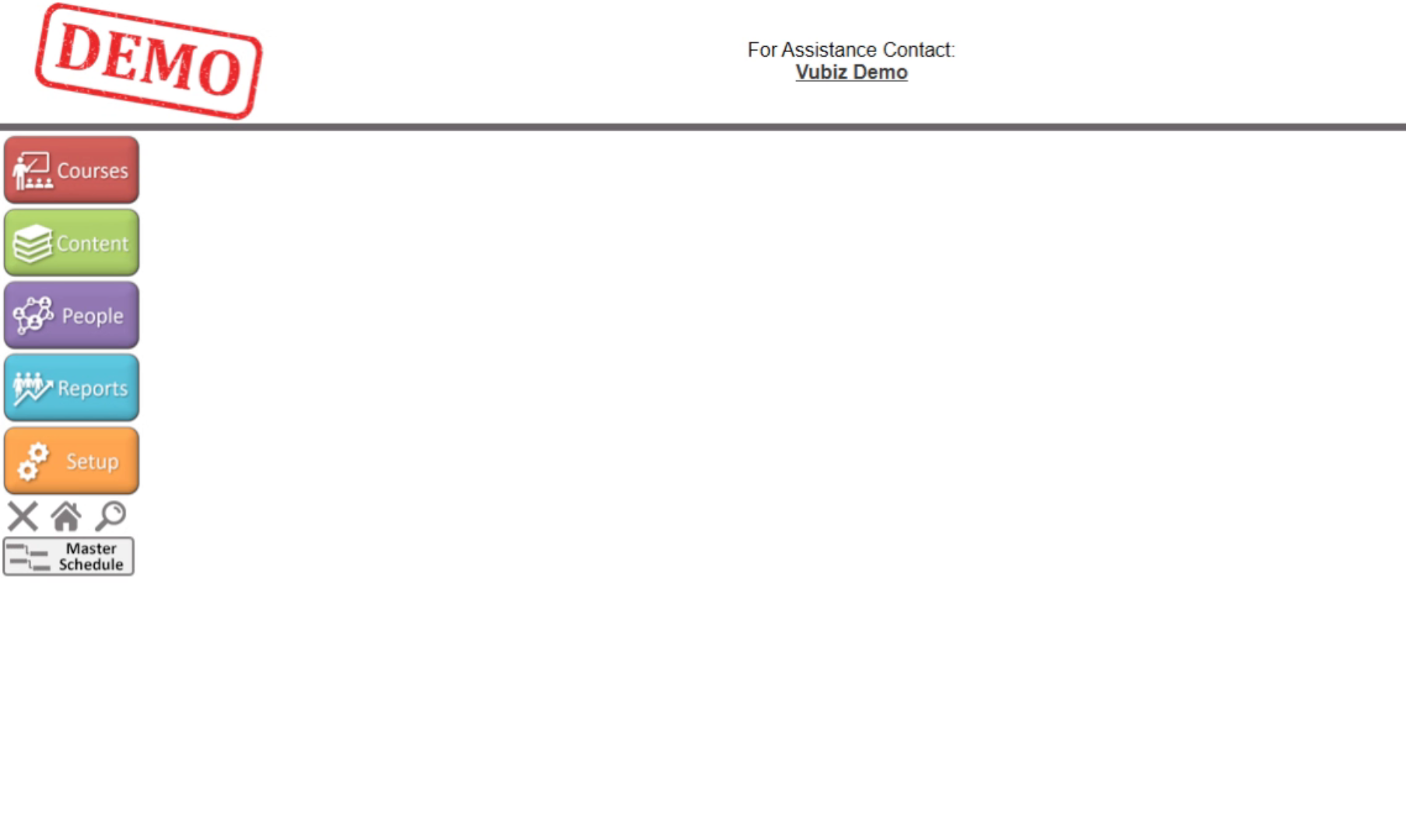
2. Access People Section
Click on people.

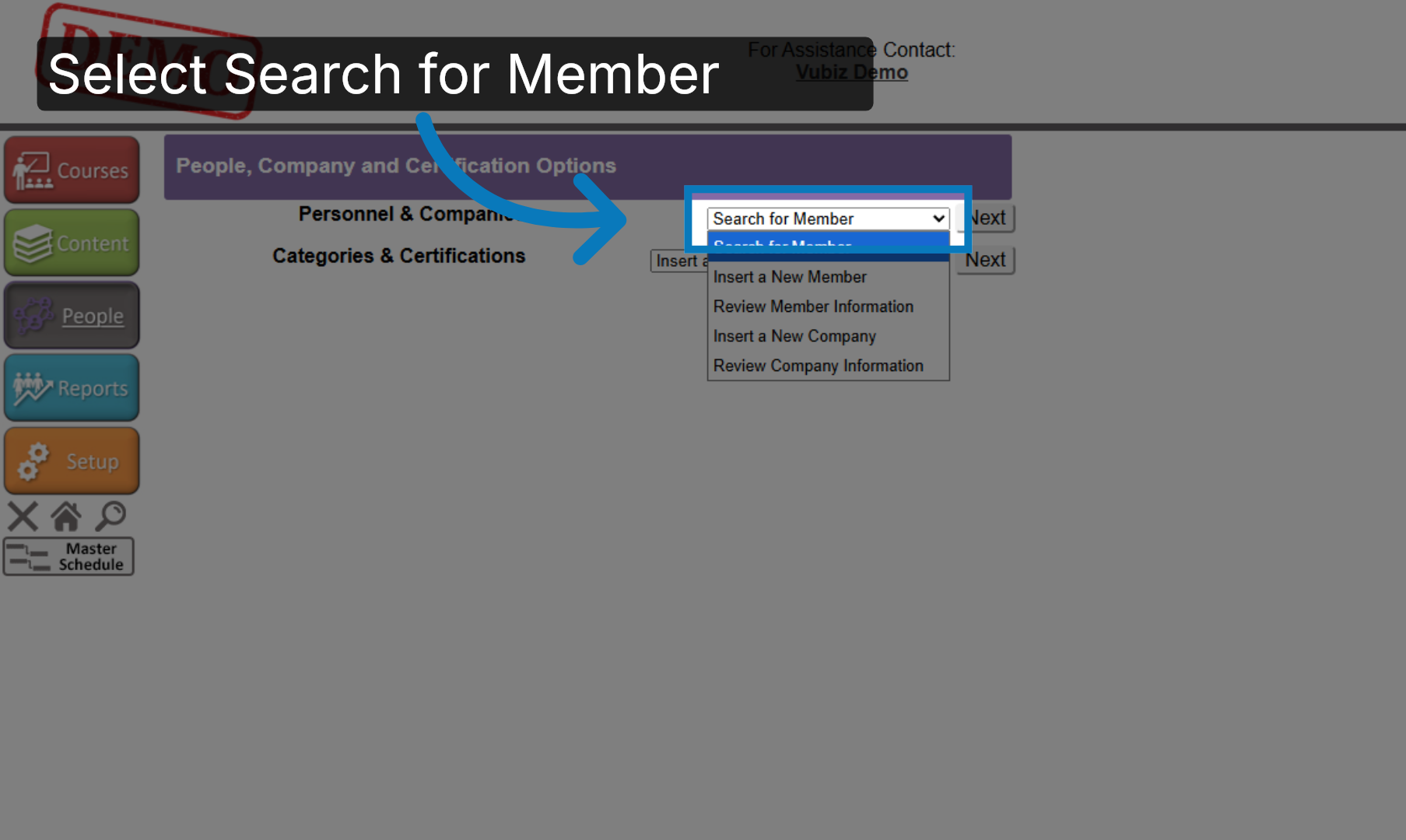
3. Select Search for Member
From the Personnel and Companies dropdown, select Search for Member.
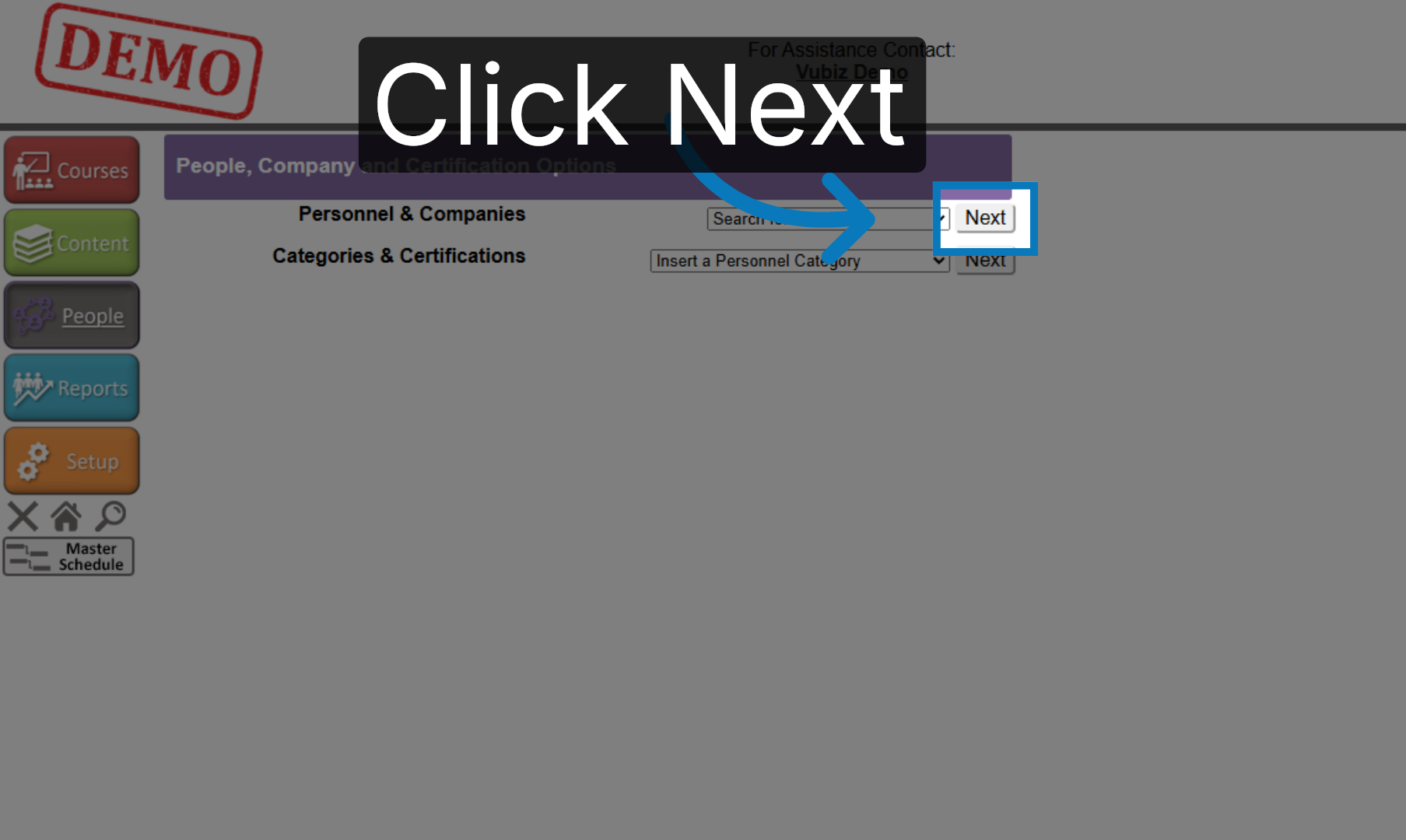
4. Proceed to Next Step
Click Next.
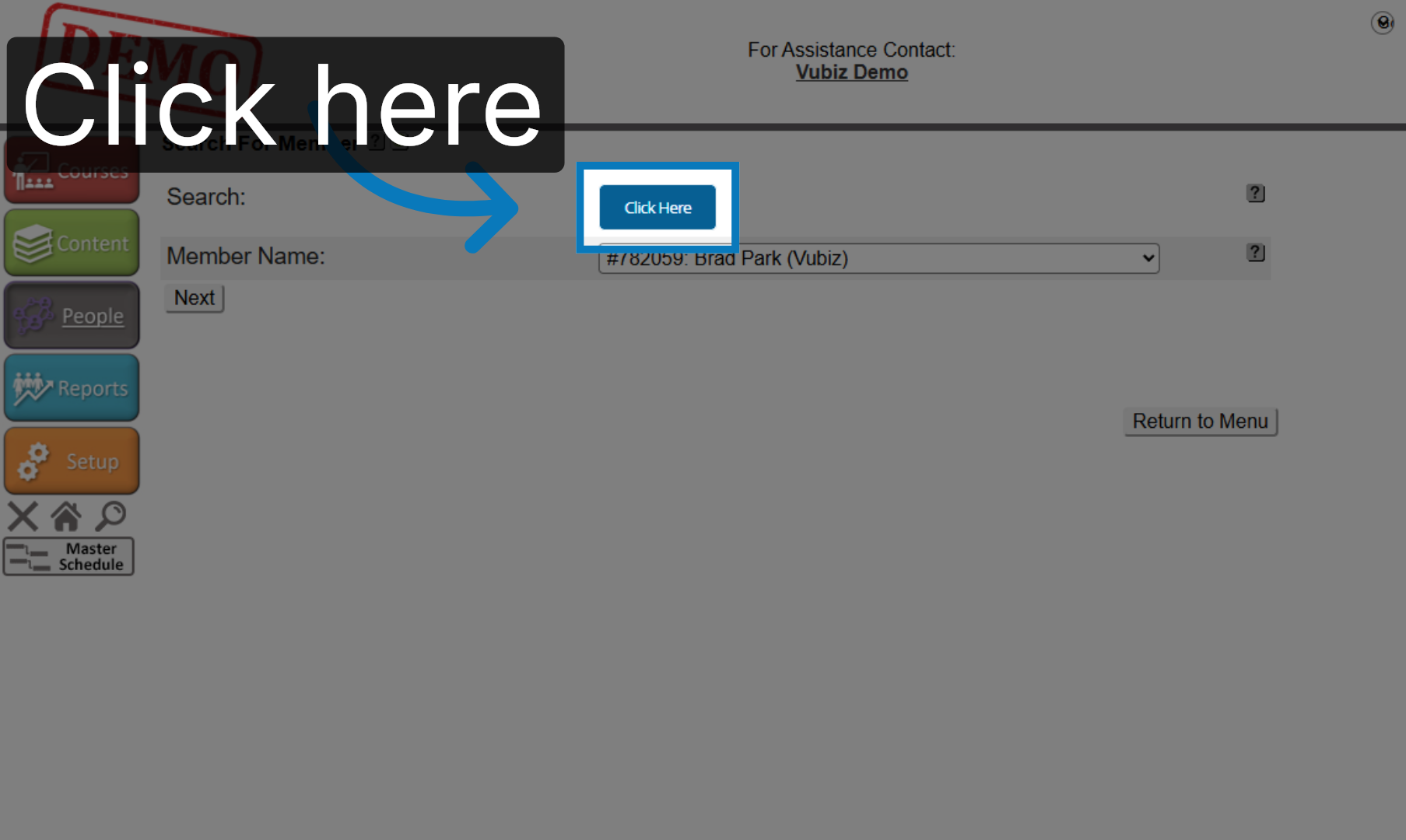
5. Open Member Search
Click the Search button.
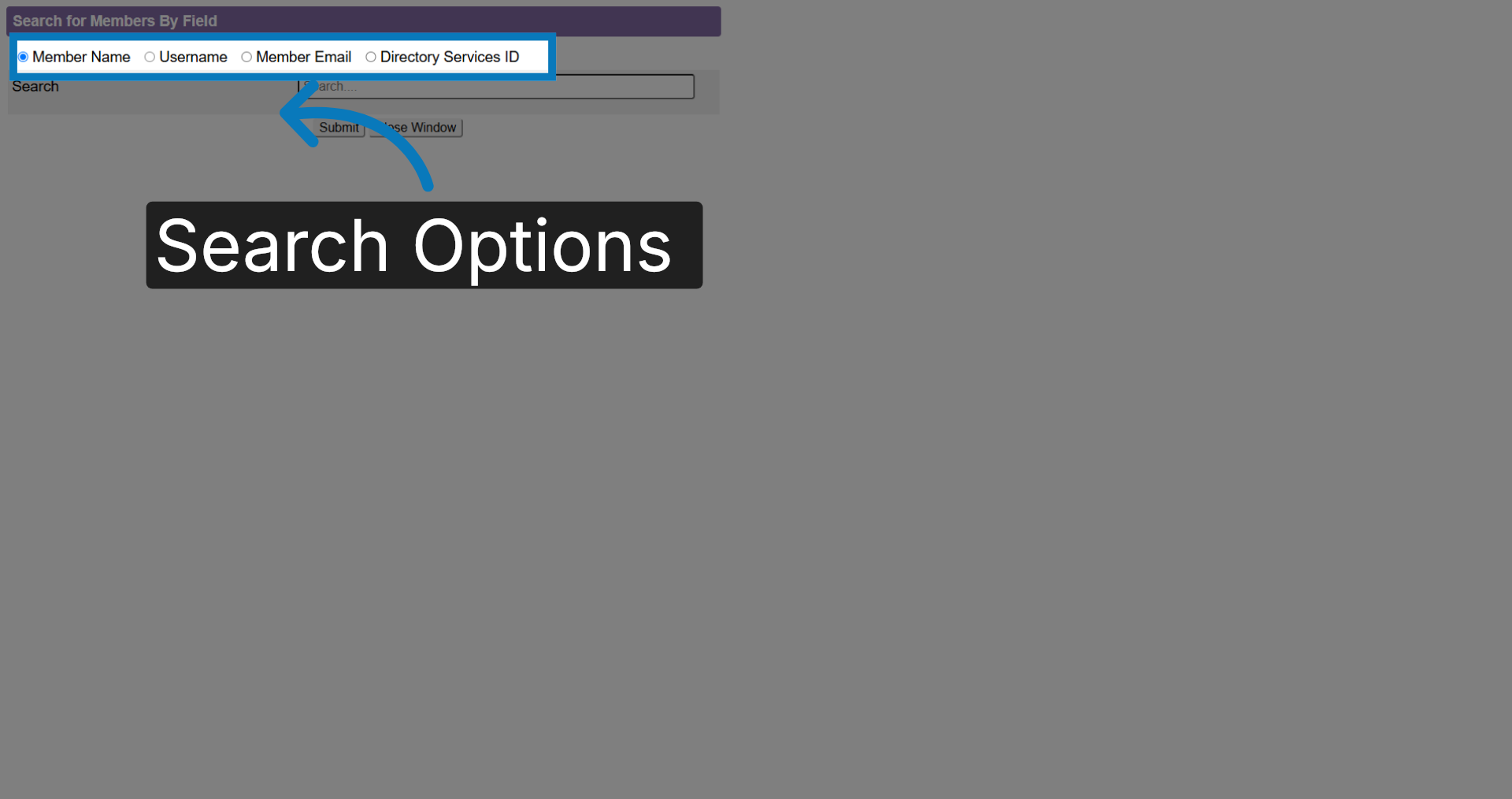
6. Search Options
You can search by member name, username, member email, or the directory services ID.
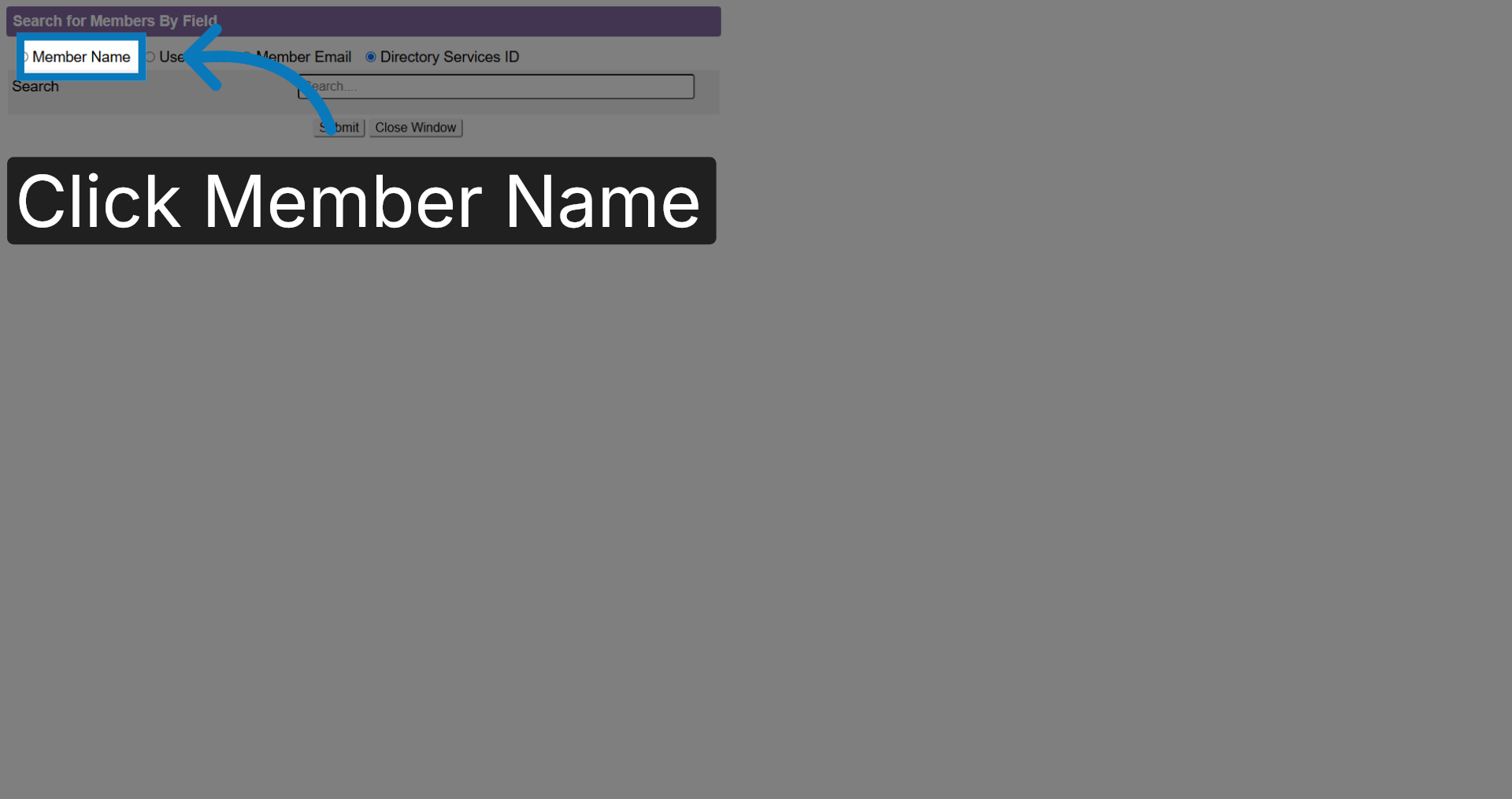
7. Select Member Name Field
Click Member Name.
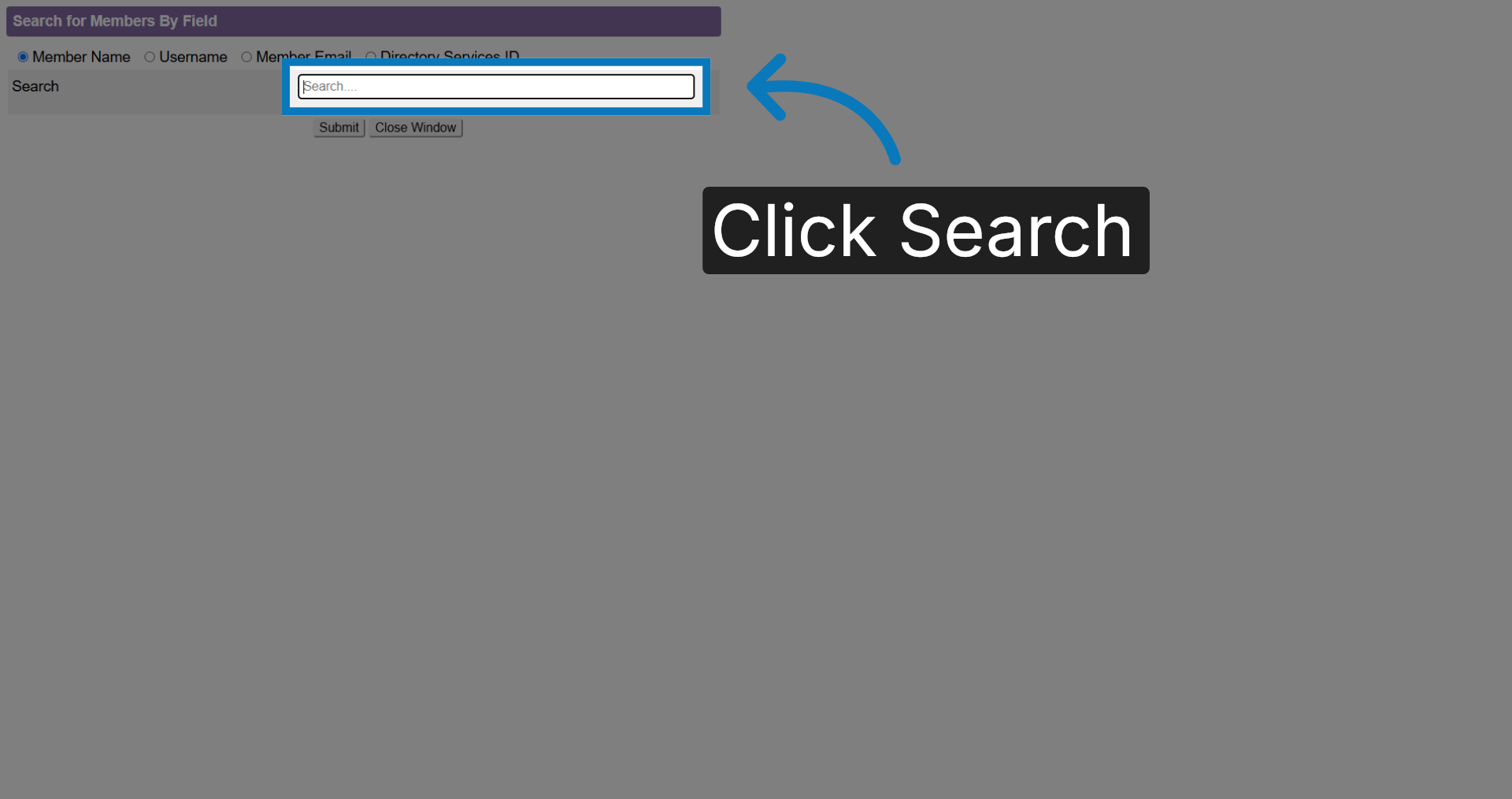
8. Search Text Box
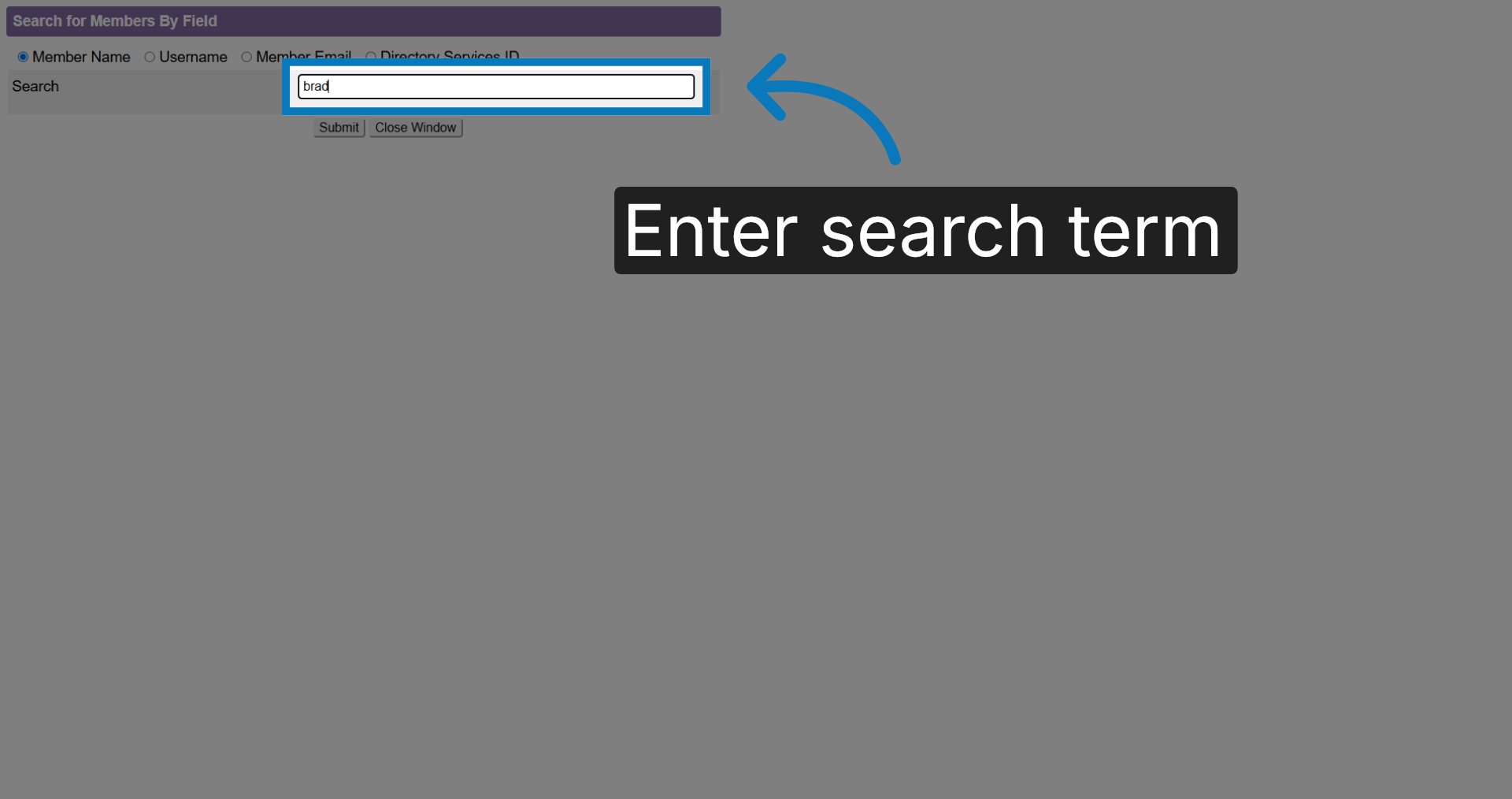
Enter the First or Last name of the profile in the space provided
9. Enter Search Term
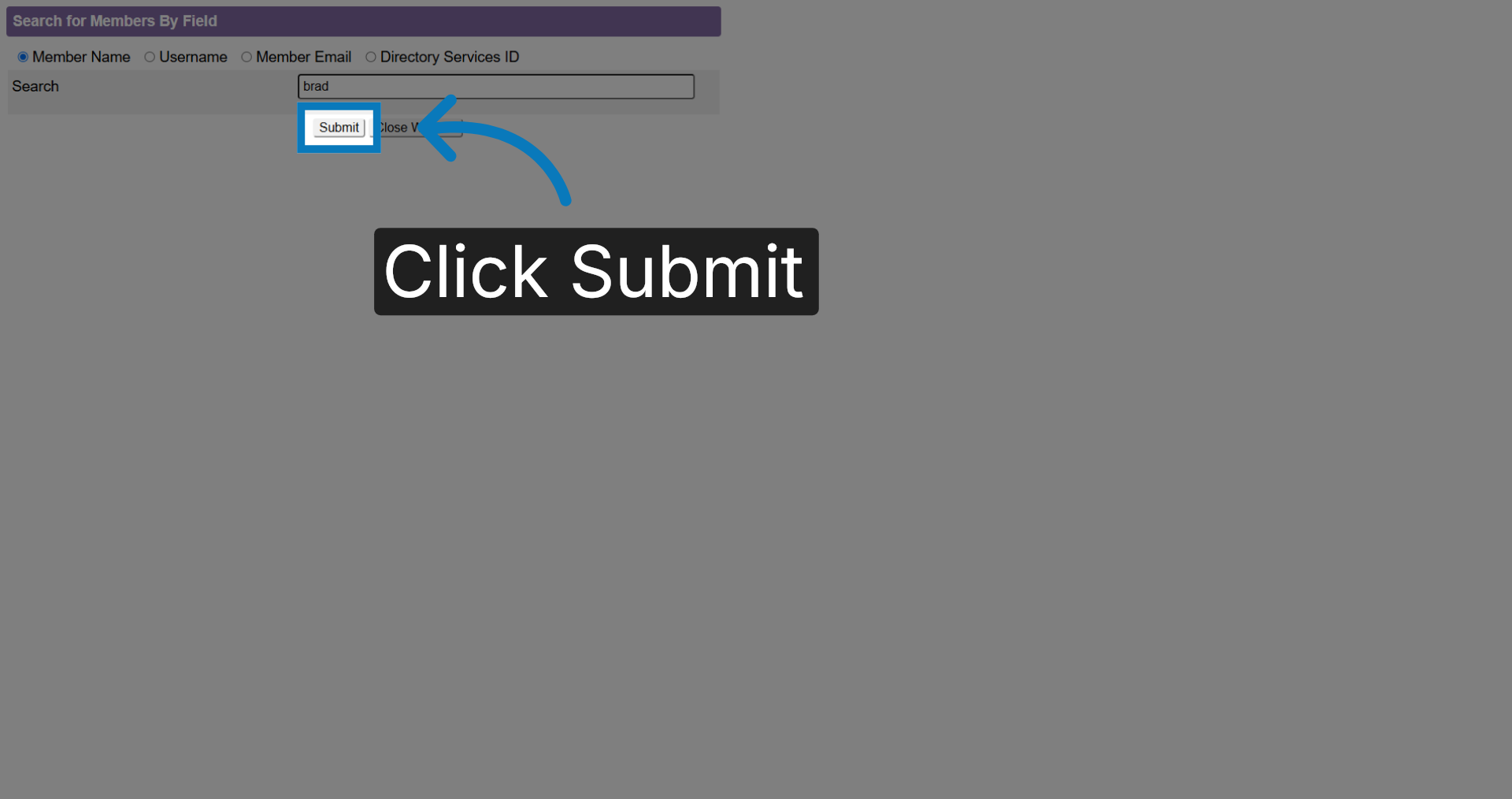
10. Submit Search
Click Submit.
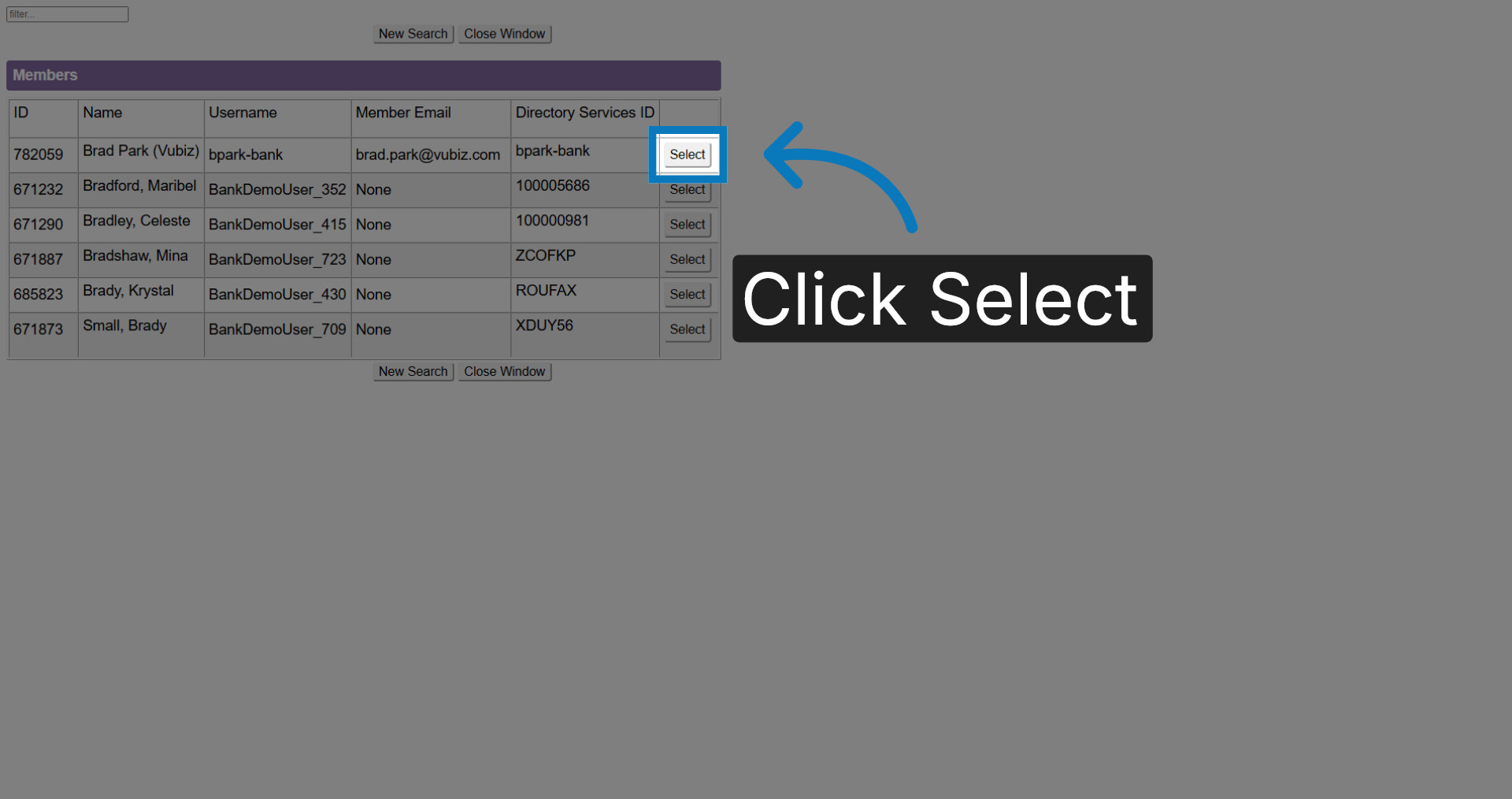
11. Select Profile
Locate the profile you wish to add the course to and click Select.
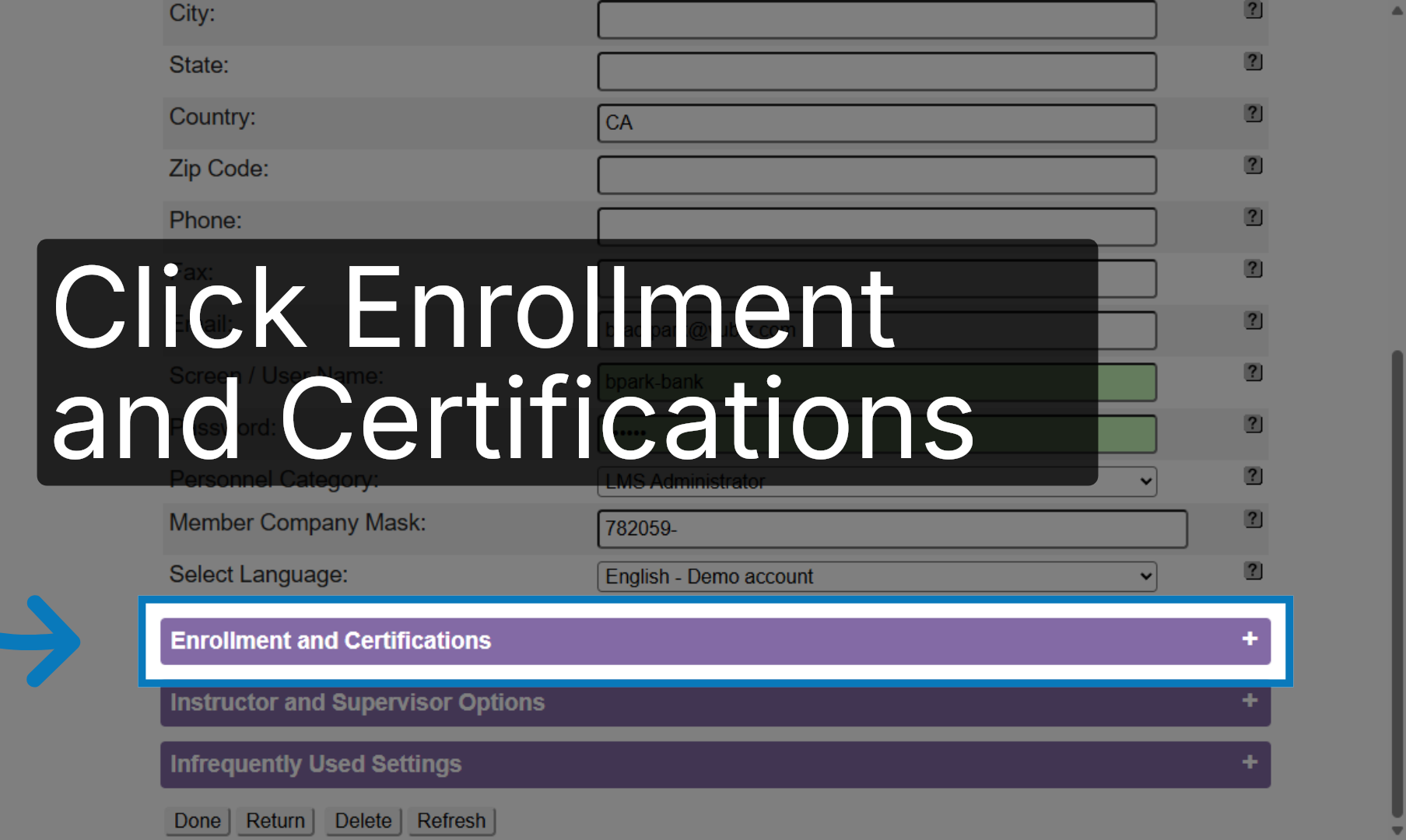
12. Access Enrollment Section
Once the profile appears, scroll down to the Enrollment and Certification area.
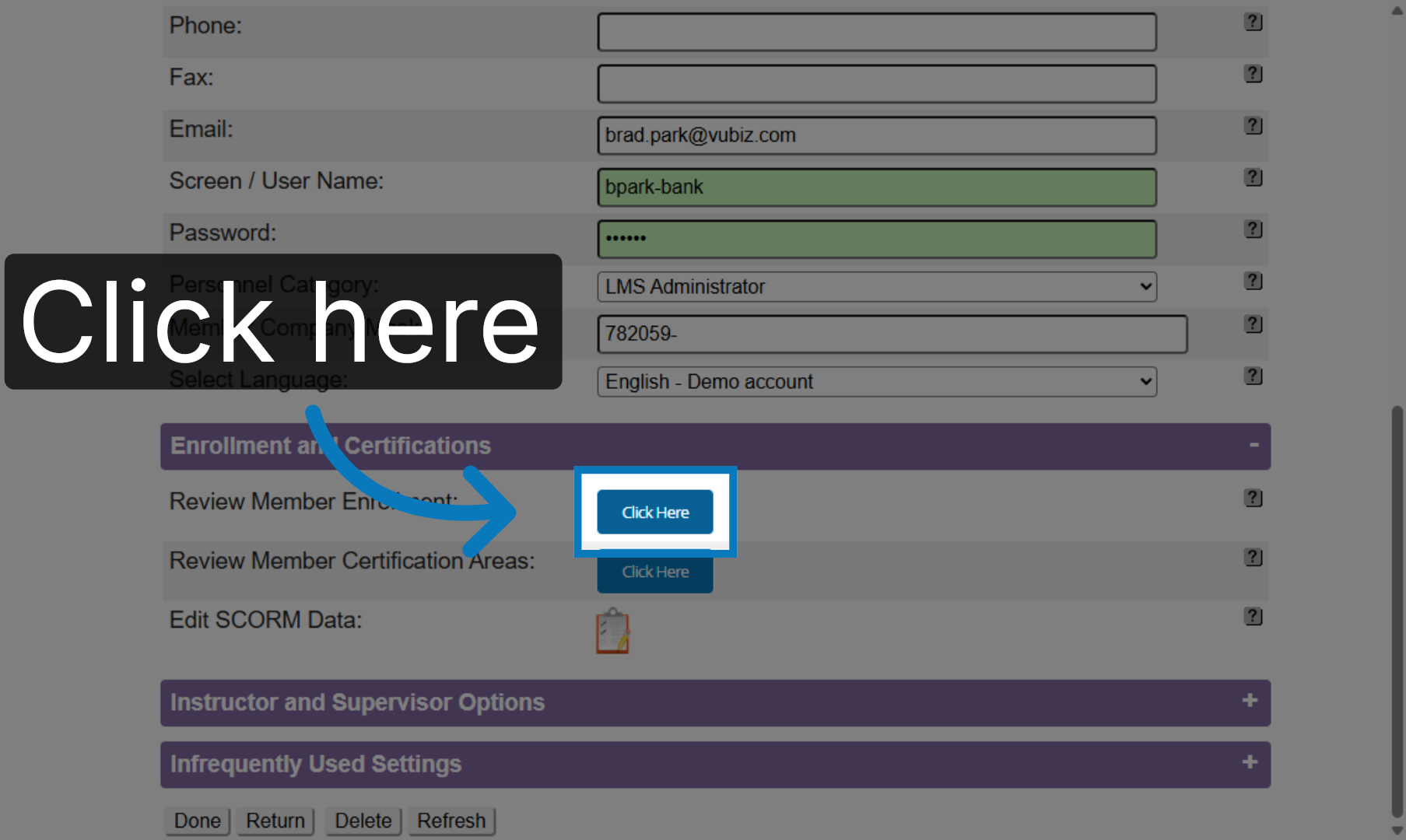
13. Open Member Enrollment Review
Click on the Review Member Enrollment button.
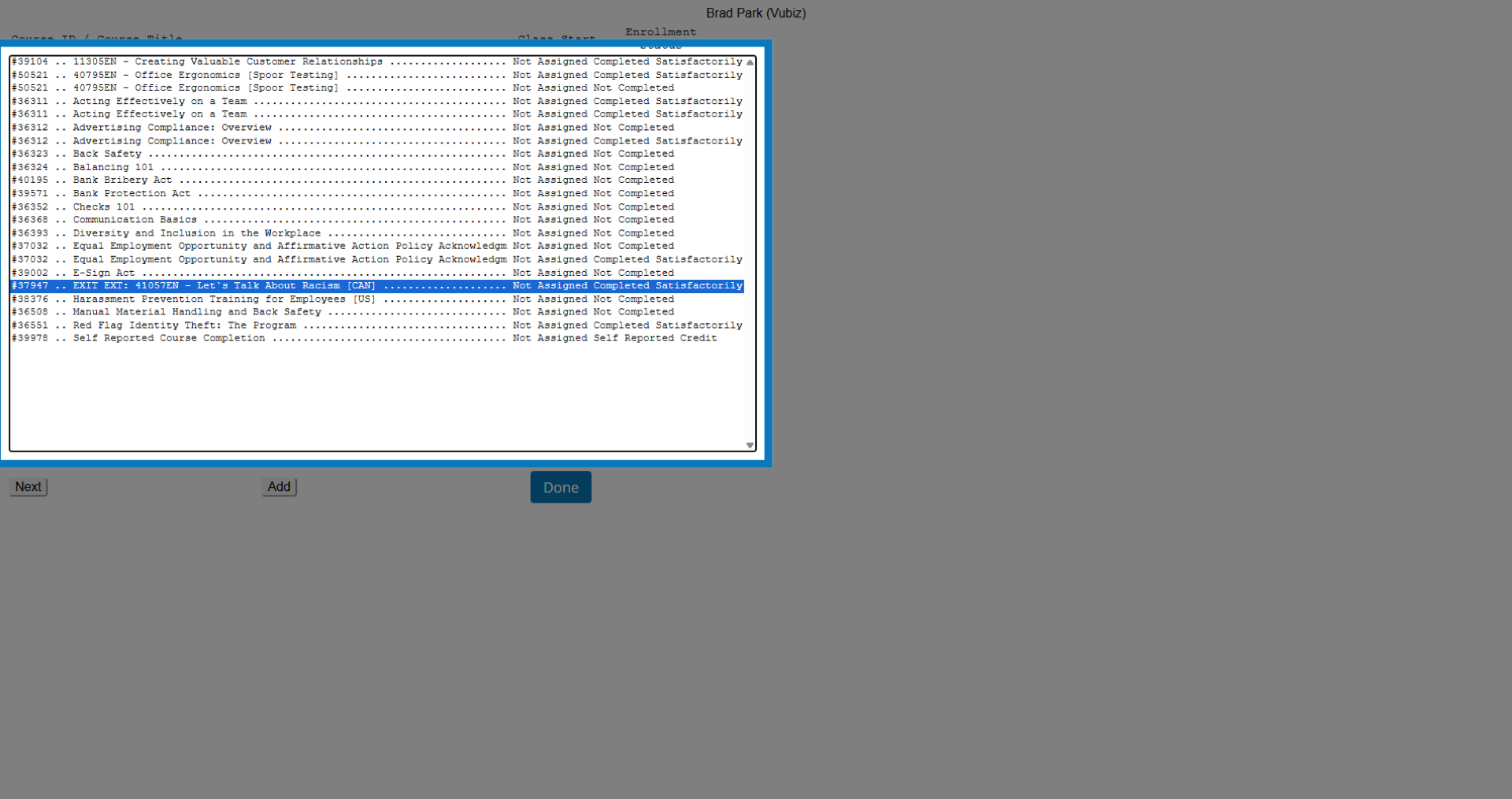
14. Review Course List
This is the current list of courses assigned to this profile.
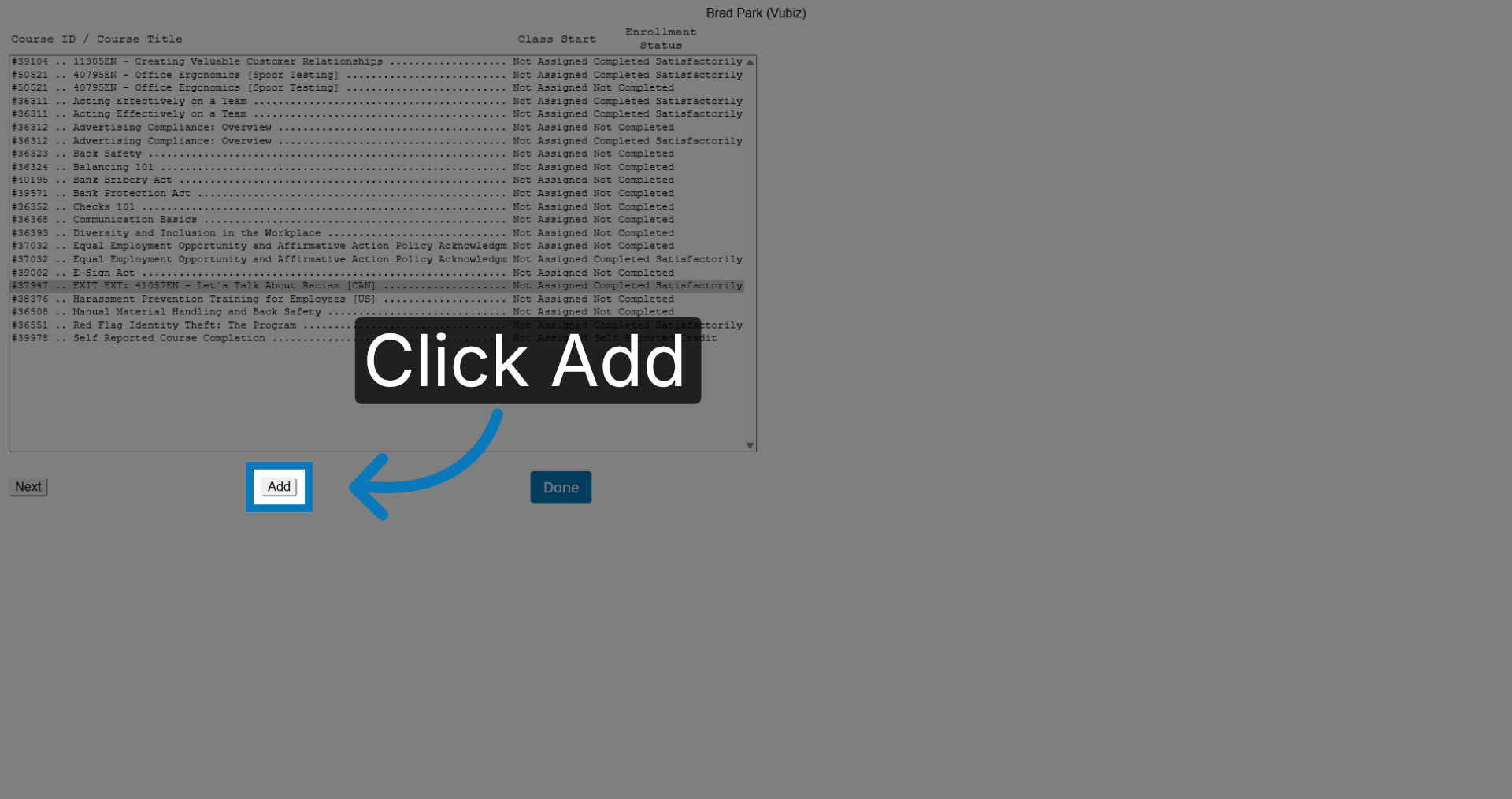
15. Add New Course
Click the Add button to add a new course enrollment.
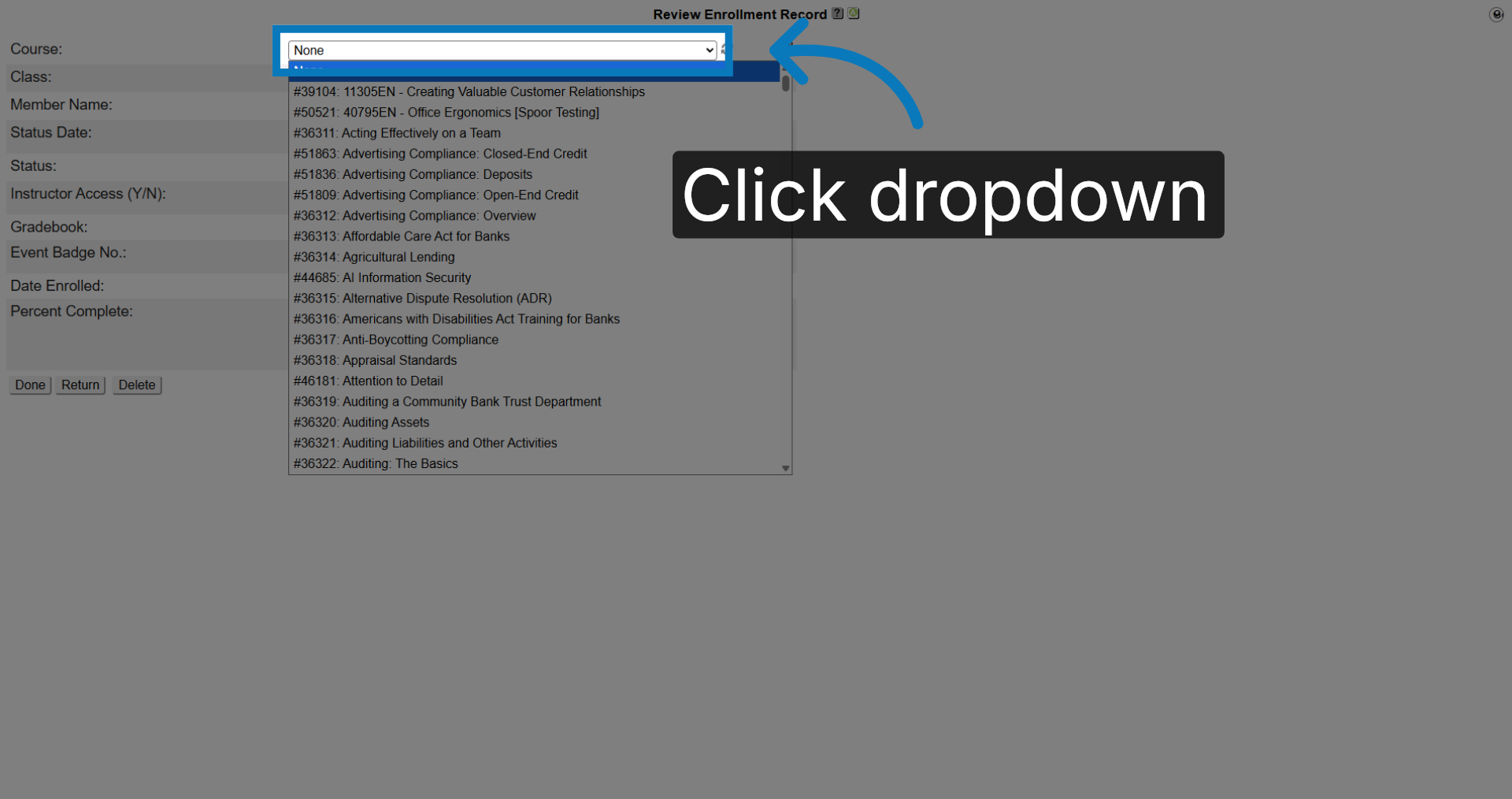
16. Open Course Dropdown
Select the course you wish to assign from the Course dropdown.
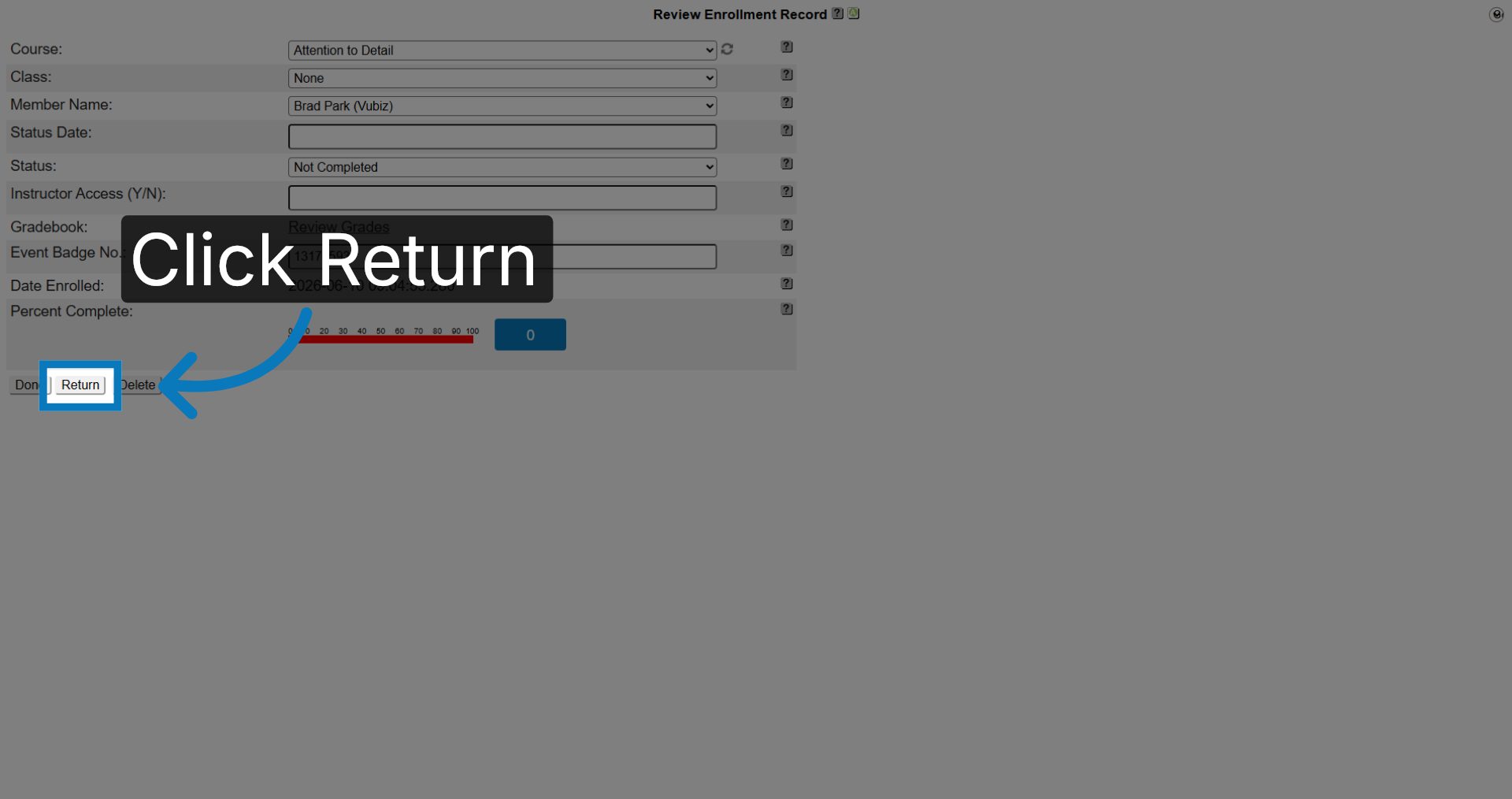
17. Return to Enrollment List
Click Return.
18. Confirm Course Availability
The course you selected is now available on the list. Verify that the course appears in the enrollment list. Click Done.

19. Finalize Assignment
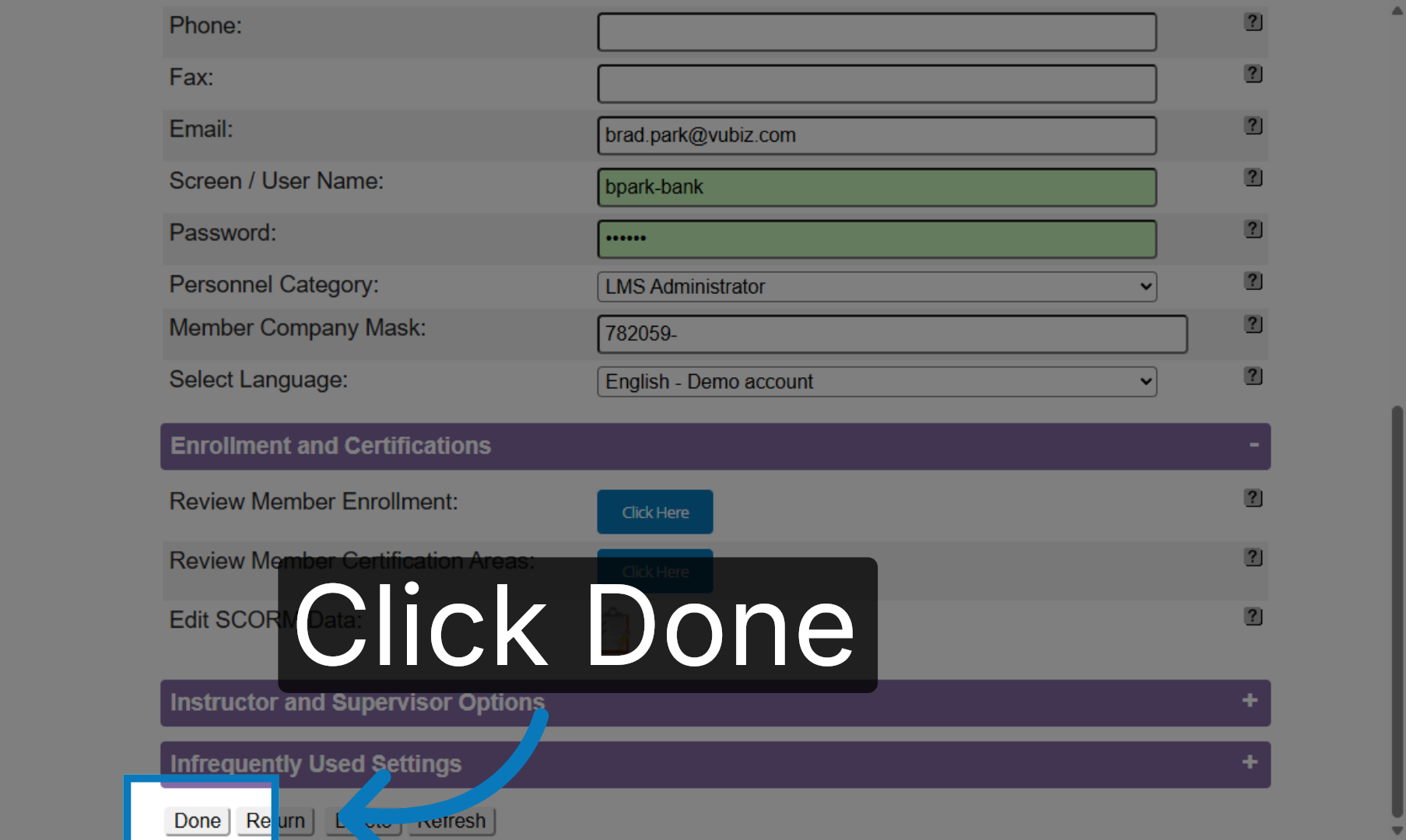
Scroll down to the bottom and click Done again.
You have successfully assigned an individual course to a profile within KMx.